Website & Mini App
The customer website combines a storefront, code sign-in, purchases, devices, referrals and support. Mini App uses the same installed service.
Where to find it: #/cabinet — System.
Workflow
- Review the starter RU/EN content and branding; edit it if needed.
- Enable publication and click Save settings.
- Create an installation and configure DNS.
- Run its command on the server.
- Verify HTTPS and connectivity.
Branding, content and access code
Set light/dark logos, favicon, two colors, SEO, headings, plan descriptions, FAQ and instructions in both languages. Customers choose RU/EN and their preference persists. Registration issues a code that can be viewed and copied again in the account. Rotation ends other sessions. Use the built-in confirmation flow to link Telegram.
Registration and free access
Enable Website registration and save settings so customers can create accounts. “Register” appears on the storefront and in the sign-in dialog, including on mobile. When registration is closed, the dialog explains this; existing customers can still sign in with their codes. Updates preserve the owner’s choice.
A free plan in the project currency remains available with paid purchases disabled and no payment providers. Paid offers are hidden when purchases are disabled. Free access can be claimed once; new customers save their access code before checkout.
Verify the result
Mini App requires an installed customer website. The starter template fills empty form fields; the owner enables publication and saves settings. Keep the installation secret on the server only.
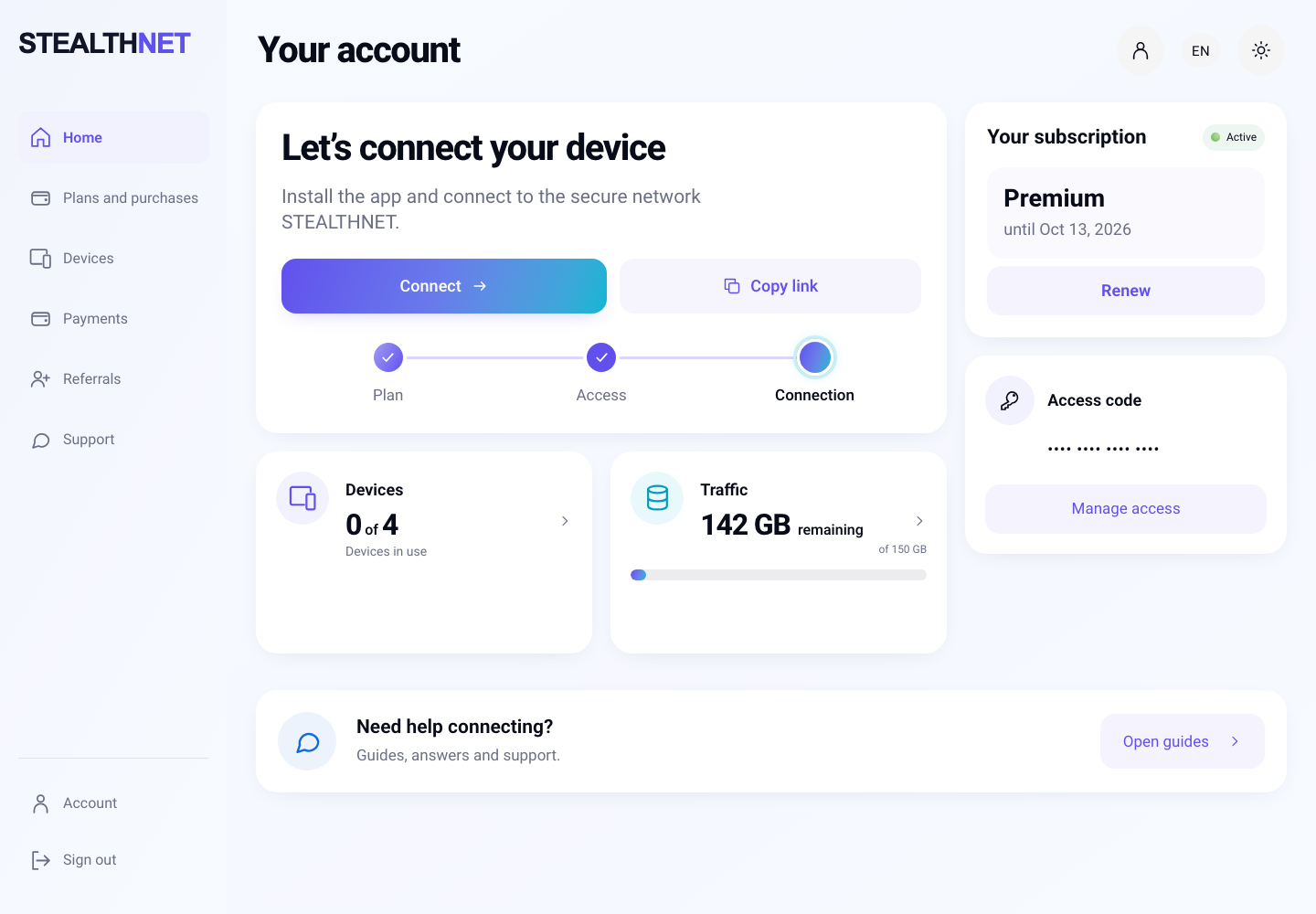
Interface shown with demonstration data.
Related guides
cabinet-installation · branding · Plans connect prices with access